Clinic Portal & App
Purpose
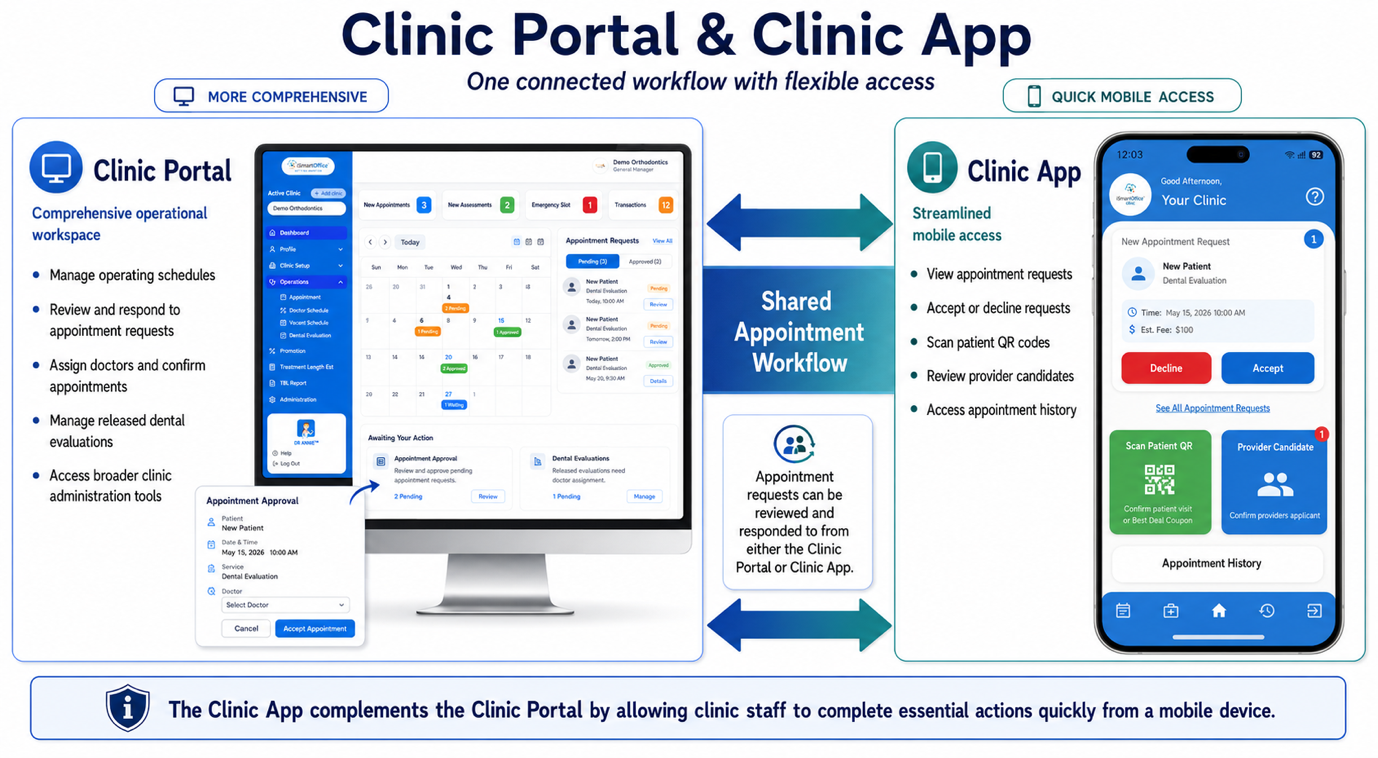
The Clinic Portal and Clinic App provide access to several of the same clinic workflows, including reviewing and responding to appointment requests. The Clinic Portal offers more comprehensive administrative and operational capabilities, while the Clinic App provides streamlined mobile access for common and time-sensitive activities.
- Clinic Portal: Provides a comprehensive workspace for managing clinic operations, including operating schedules, appointment requests, provider assignments, released dental evaluations, and other clinic administration activities.
- Clinic App: Provides convenient mobile access to essential daily activities, such as viewing, accepting, or declining appointment requests, scanning patient QR codes, reviewing provider candidates, and accessing appointment history.
The Clinic App complements the Clinic Portal by allowing clinic staff to complete essential actions quickly from a mobile device.
Accessing the Clinic App
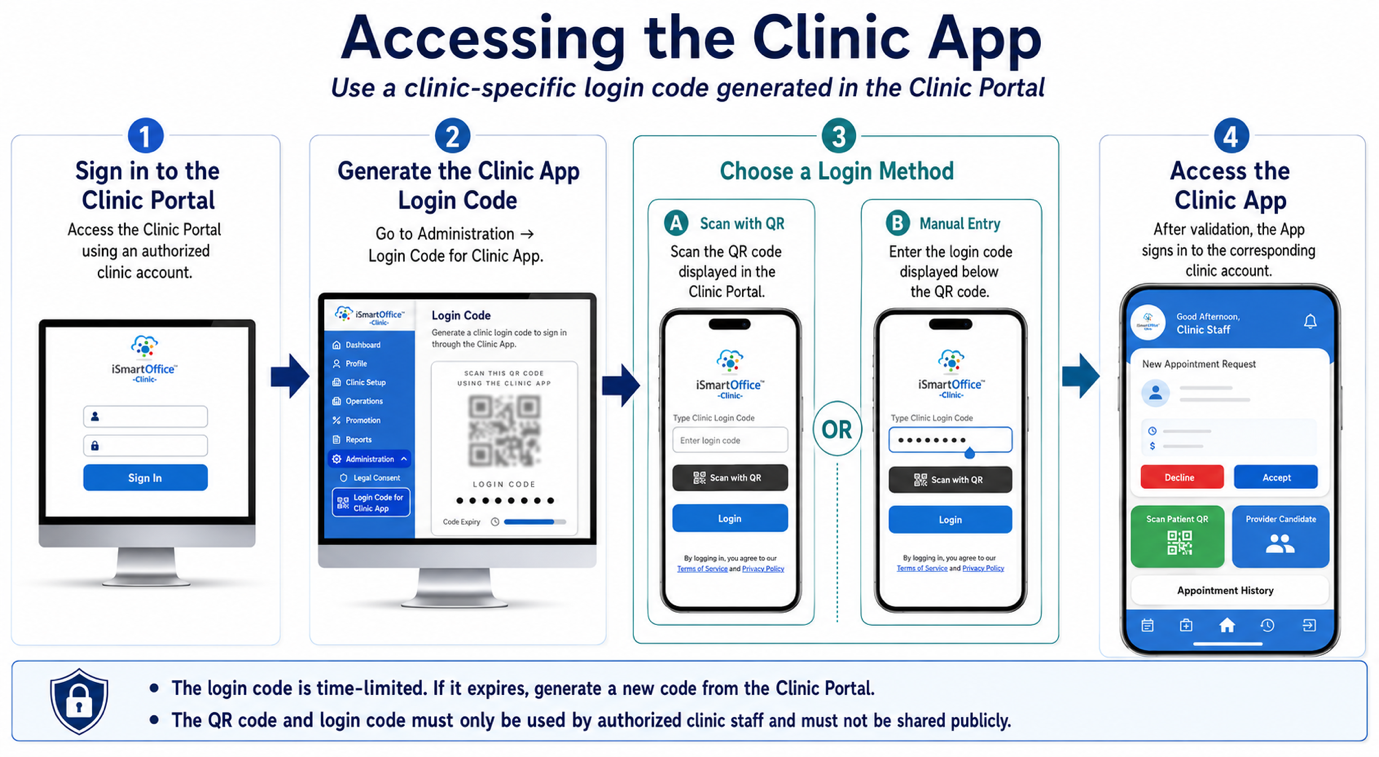
The Clinic App uses a clinic-specific login code generated through the Clinic Portal. Clinic staff do not need to enter a separate username and password in the Clinic App.
1. Sign in to the Clinic Portal
Access the Clinic Portal using the clinic's authorized account.
2. Open the Clinic App Login Code Page
From the Clinic Portal, go to:
Administration → Login Code for Clinic App
3. Choose a Login Method
Open the Clinic App and sign in using either of the following methods:
- Scan with QR — Scan the QR code displayed in the Clinic Portal.
- Manual Entry — Enter the login code displayed below the QR code.
4. Complete the Login
Once the QR code or login code is validated, the Clinic App automatically signs in to the corresponding clinic account.
- The login code is time-limited. If the code has expired, generate a new code from the Clinic Portal.
- The QR code and login code provide access to the clinic account. They should only be used by authorized clinic staff and must not be shared publicly.
How the Clinic Responds to Patient Activities
| Patient Activity | What the Clinic Receives | Required Clinic Action |
|---|---|---|
| The patient searches for a clinic | Clinic availability is displayed based on the configured operating schedule | Keep the clinic schedule, provider availability, and treatment coverage up to date |
| The patient submits an appointment request | A new appointment request appears in the Clinic Portal | Review the request and patient information |
| The patient uses DR. ANNIE™ and authorizes sharing | The released evaluation and generated treatment information become available | Review the preliminary information before assigning a provider |
| The patient selects a preferred date and time | The requested visit date and time appear in the appointment details | Verify actual provider availability |
| The clinic confirms the request | The appointment status is updated | Assign the appropriate doctor and confirm the appointment |
| The patient arrives at the clinic | The patient presents an appointment QR code | Scan the QR code using the Clinic App and confirm the visit |