▶ Watch: Login with Code — Opens in YouTube
How to Login
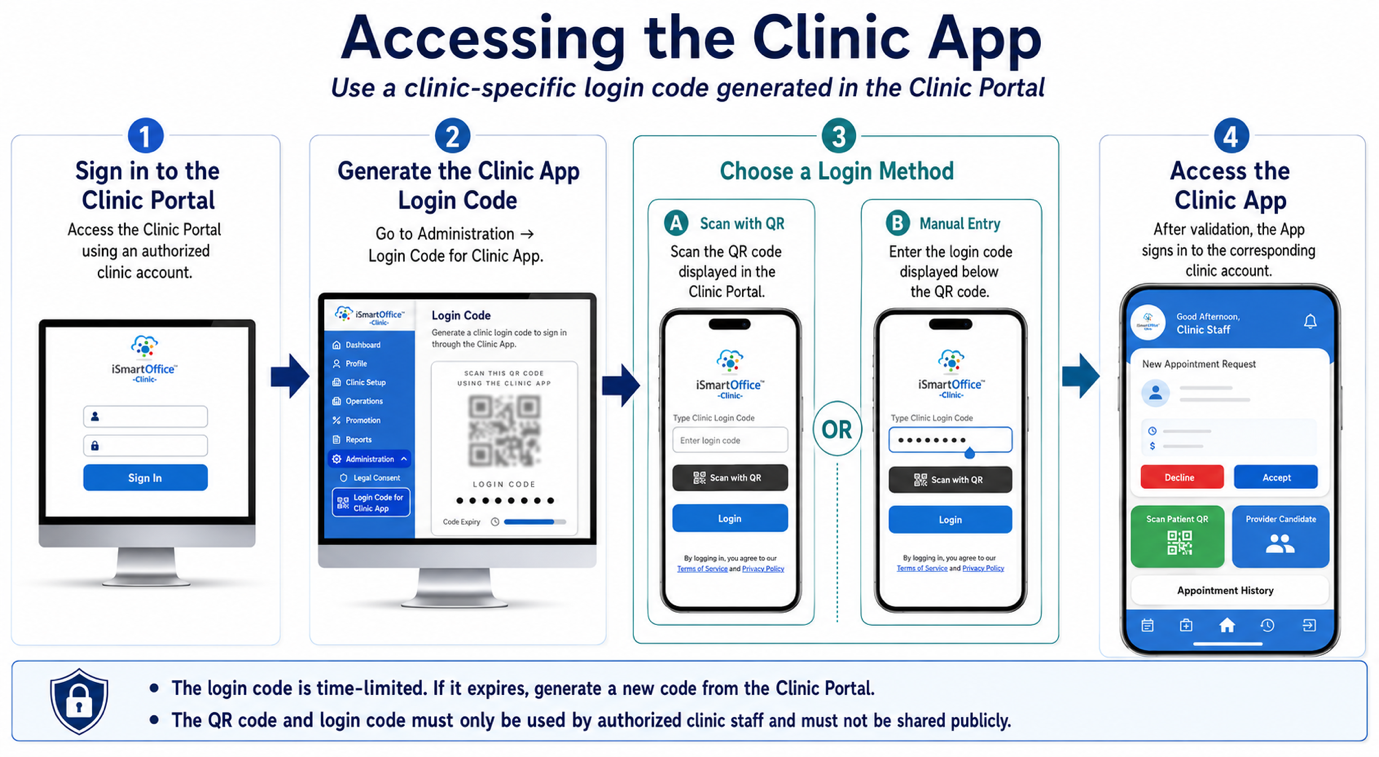
To log in to the iSmartOffice™ Clinic App, clinic staff must obtain a secure login code from the iSmartOffice™ web portal. This method is designed to ensure both security and ease of access for authorized users.
Step-by-Step Instructions
1. Sign in to the Clinic Portal
Access the Clinic Portal at clinic.ismartoffice.ai using the clinic's authorized account.
2. Open the Clinic App Login Code Page
From the Clinic Portal, navigate to:
Administration → Login Code for Clinic App
3. Choose a Login Method
Open the Clinic App and sign in using either of the following methods:
- Scan with QR — Scan the QR code displayed in the Clinic Portal. This will automatically log you in without manual input.
- Manual Code Entry — Alternatively, you can manually enter the login code displayed below the QR code into the Clinic App.
4. Complete the Login
Once the QR code is scanned or the login code is entered correctly, the Clinic App will log in automatically to the corresponding clinic account.
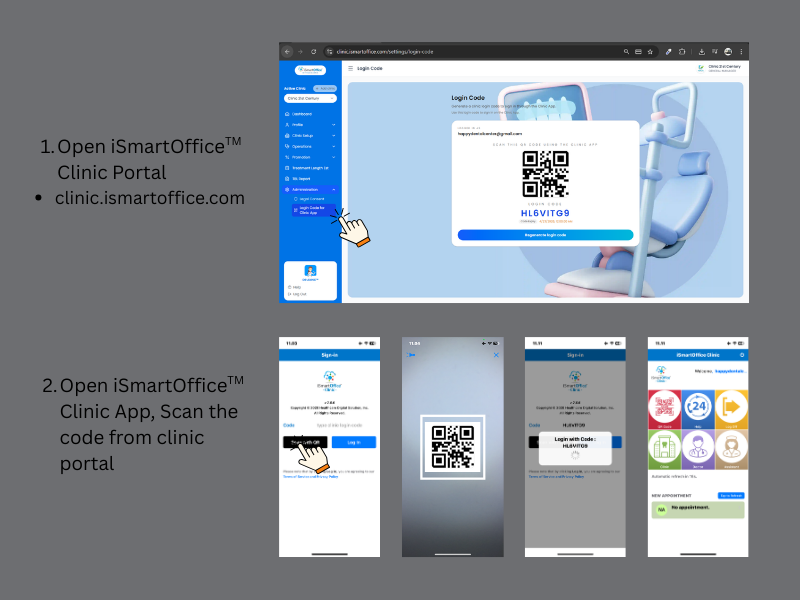
This login method ensures that only authorized clinic staff can access the Clinic App, while also keeping the login process quick and convenient — no usernames or passwords are required on the app itself.
- The login code is time-limited. If the code has expired, generate a new code from the Clinic Portal.
- The QR code and login code provide access to the clinic account. They should only be used by authorized clinic staff and must not be shared publicly.