Schedule & Appointment
▶ Watch: Schedule and Appointment — Opens in YouTube
How the Provider App Connects to the Ecosystem
The Provider App receives information after the clinic completes the required review and provider assignment steps. It does not receive every appointment request or dental evaluation submitted by patients.
| Ecosystem Stage | Action |
|---|---|
| Patient App | The patient submits an appointment request and may authorize the release of a DR. ANNIE™ dental evaluation |
| Clinic Portal or Clinic App | Clinic staff review the appointment request, verify availability, accept the request, and assign the appropriate doctor |
| Clinic Portal | For a released dental evaluation, clinic staff review the case and assign it to a provider |
| Provider App | The assigned provider reviews the appointment, preliminary evaluation, and images before the consultation |
| After Provider Review | The evaluation status is updated and becomes visible to the clinic as reviewed |
Provider Appointment Workflow
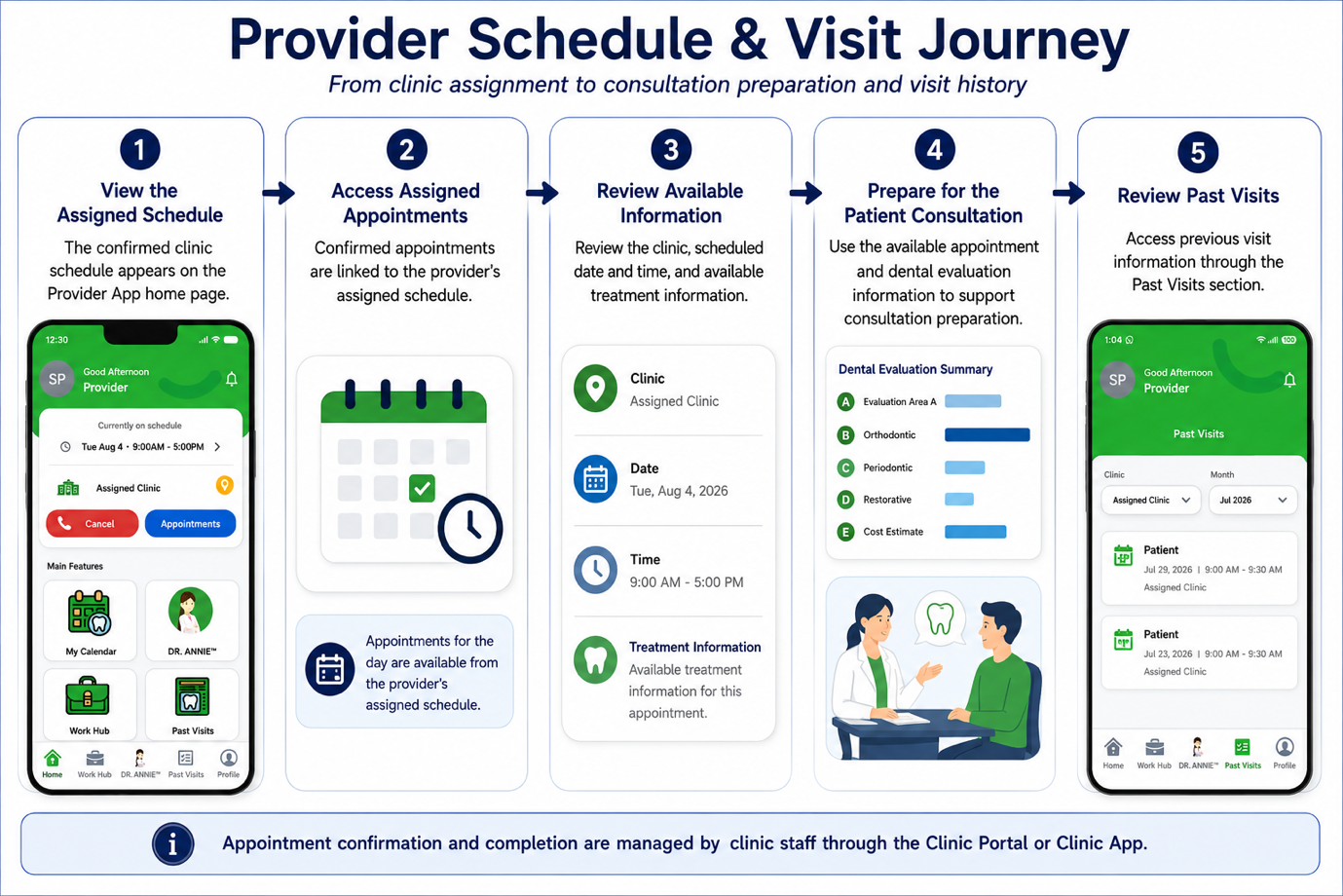
1. Receive an Assigned Schedule
Once the clinic confirms the provider's working schedule, it becomes visible on the Provider App home page and calendar.
2. Access Assigned Appointments
After the clinic accepts an appointment request and assigns the provider, the appointment becomes available in the provider's schedule.
3. Review Appointment Information
Review the patient, clinic location, scheduled date and time, and available treatment information before the consultation.
4. Conduct the Patient Consultation
Use the available patient and dental evaluation information to support the consultation and determine the appropriate clinical assessment and next steps.
5. Access Past Visits
After the visit, previous appointment information can be accessed through the Past Visits section.
Schedule Info
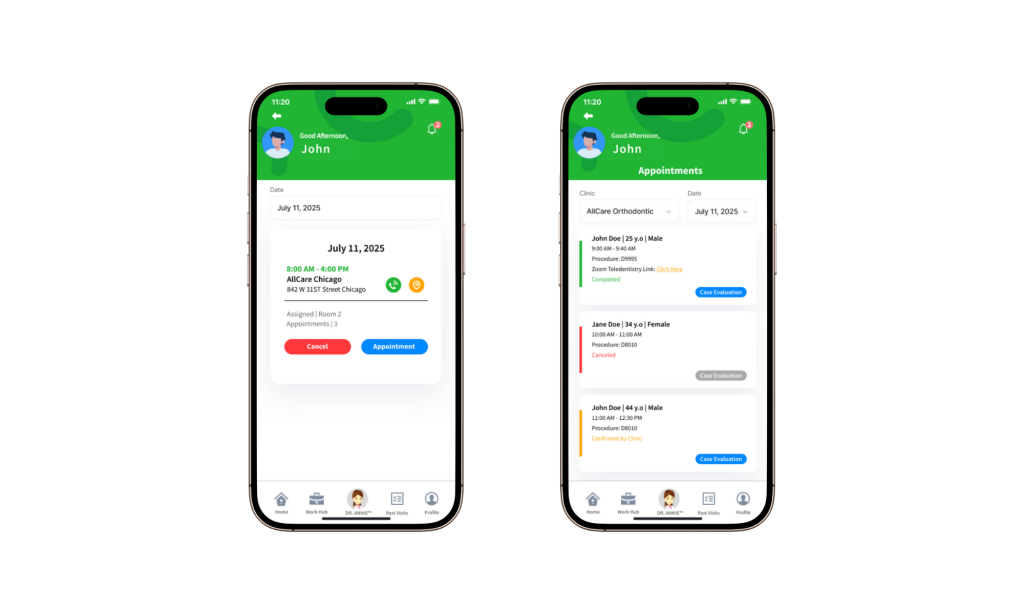
Tap a schedule card on the dashboard to open the Schedule Info page and view detailed schedule information.
Appointment List
Select the Appointment button to view patients scheduled for that day.
Each patient entry includes a color indicator:
- Green: Appointment completed
- Red: Appointment canceled
- Yellow: Clinic confirmed, patient has not yet visited
Additional Appointment Features
- Zoom Teledentistry Link Available if the patient requested a remote consultation.
- Case Evaluation Button Appears once the patient releases their dental evaluation via the iSmartOffice™ Patient app.
Past Visit Tracking
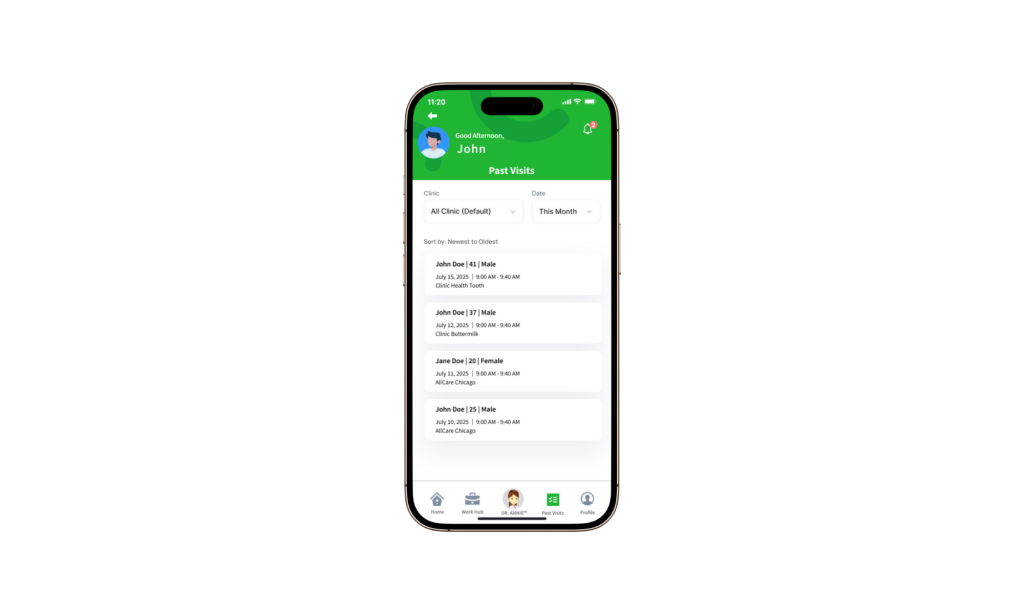
After a visit is completed, the patient record automatically moves to Past Visit, allowing you to review and track previous appointments.